Michael’s Origins: Stumble Me This -Stumble Me That

This is a great tutorial! I never knew how to get the picture there for Stumble Upon! Thank you!

Michael's avatarMichael Rios

Last night I ran across a Blog that had a StumbleUpon button on their Blog so that people could share their work if that wanted to do so.

I was like how is that possible, WordPress got rid of that. So research I did. Then I ran acrossย Debby Giesโ€™s Google Plus Page where she shared an article about โ€œThe Power of StumbleUponโ€ which I read, then I was like SOB! So there I am at my desk just shaking my head.

So, if you would like to put a StumbleUpon button on your Blog, then follow these simple steps.

Sharing

Go to your Dashboard,

Then settings

Then click on Sharing.
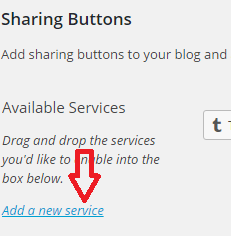
Click on services

Locate

Add a new Service

When you click on โ€œAdd a new serviceโ€

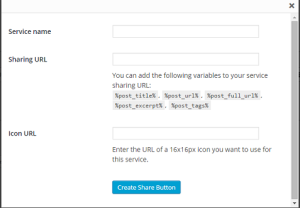
A new popup window will open

Enter info

Service Name: Enter Stumble Me (if feeling like a smart butt)

Sharing URL: Copy the below URLโ€ฆ

View original post 87 more words

8 responses to “Michael’s Origins: Stumble Me This -Stumble Me That”

  1. Thank you..It worked!..love it when It’s this simple to do..thank you for sharing ๐Ÿ™‚

    Like

    1. Thank Michael’s Origins!! He made it easy to follow with straight forward directions! I thought since it worked for me, other people would like it too!! Glad it worked for you!! ๐Ÿ™‚

      Liked by 1 person

      1. I have Hugh have a lovely day ๐Ÿ™‚

        Like

      2. You too!! ๐Ÿ™‚

        Like

  2. Just when I think I might know 1/4th of it, there is something more to learn. ๐Ÿ˜€ Thanks for sharing, Patrick. Hugs.

    Like

    1. Me too! I have wanted to know how to get the pix on the Stumble Upon…this laid it out really well!! ๐Ÿ™‚
      Thought I would share the knowledge!! ๐Ÿ™‚

      Like

  3. I’ve been wondering about that for a while. Thanks for sharing, Patrick!

    Like

    1. Me too…I had it almost right (I think) but didn’t have the picture. Figured out I had to minimize the post, copy the URL for Stumble upon…then open another window to copy the pix to media…then apply it to the button. At first, Sandy thought that the picture was on the left of the expanded post somewhere and then found it right beside the paragraph ๐Ÿ™‚ I thought it was a great tutorial!!

      Like

Leave a reply to olganm Cancel reply